How to Combine Two Photos Side by Side Online
Put two pictures side by side in EditPic, control the gap and borders, and save a single image. See how to stack photos or make a larger collage.
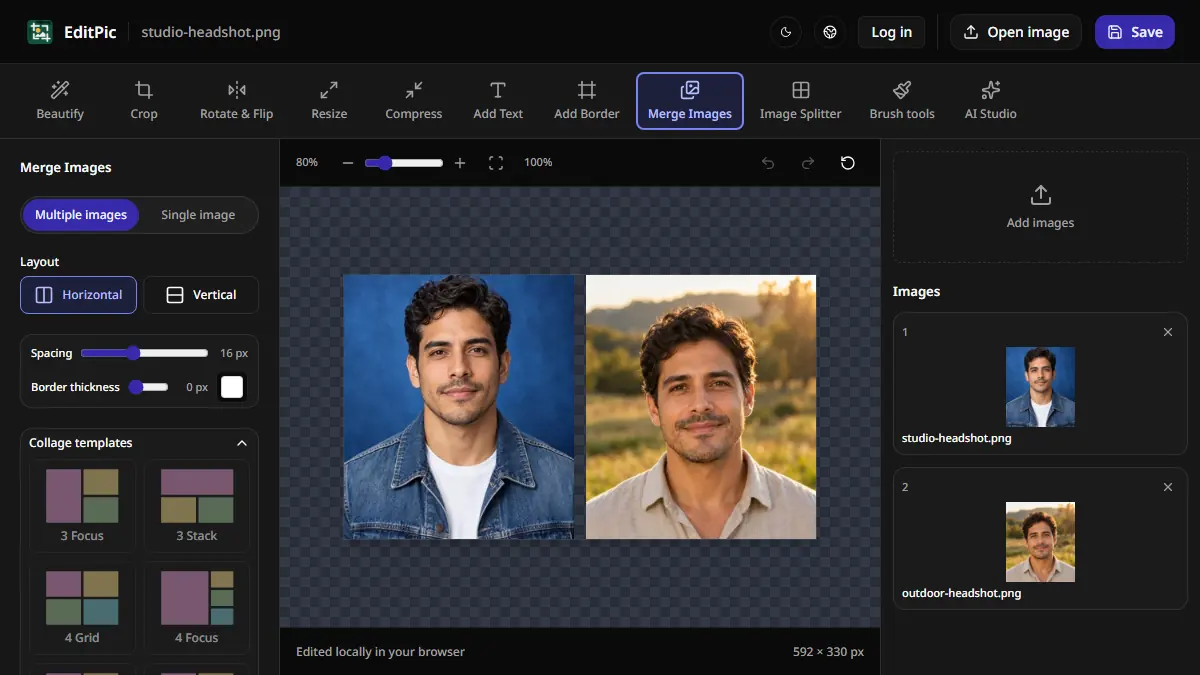
To put two photos side by side, open Merge Images in EditPic, choose the multiple-image mode, and add both photos. Select Horizontal on desktop or Across on mobile, adjust the spacing, and apply the merge. Select Save to download one image containing both photos.
How to combine two pictures into one in EditPic
- Open the Merge Images tool and choose Multiple images on desktop or Multi on a phone.
- Select Add images and choose both files. Check their order in the image list. For a comparison, put the first view on the left and the second on the right. You can remove and re-add an image if you need to change the order.
- Set the layout to Horizontal or Across. Adjust Spacing to control the gap. Use Image borders to frame the individual photos if you want their edges to stand out.
- Choose Merge images on desktop or Apply merge on a phone. Select Save, then open the downloaded copy to make sure it appears as one image.
The screenshot compares an indoor headshot with an outdoor one. Both source images were 288 × 330 px. With a 16 px gap and the border set to zero, the export measured 592 × 330 px. The gap makes the division visible while leaving both portraits at their original size.
How to choose between side by side, stacked, and grid
- Horizontal or Across works well for a before-and-after comparison, two headshot options, or two views of the same object. Both pictures should be large enough to read in the finished image. A wide pair can look small on a narrow screen.
- Vertical or Stacked puts the photos above and below each other. Use this when the final image needs to fit a narrow space, such as a mobile view or a document column.
- Collage templates make a group of photos easier to scan. Choose a layout that matches the number of photos, such as 4 Grid for four photos. The template can crop pictures to fill the cells, so check for faces, text, or products near an edge.
The horizontal and vertical layouts scale the images proportionally to line them up. Across uses the first photo's height as the reference, while Stacked uses its width. If two photos have very different shapes, decide which one should set the size and check how large the other looks in the preview. A small source photo can look soft if it is enlarged to match a large one.
How to make a before-and-after comparison clear
Use photos with similar framing when you want the reader to compare what changed. If you have two pictures of a room, try to align a feature that stayed in place, such as a window or countertop. You can crop each photo before merging to line up the subject and simplify the comparison.
Leave a small, visible gap when the two images are similar enough to blend at the seam. After applying the merge, you can add a short Before or After label to the combined image. Put the labels in similar positions and check that they can be read on a phone.
Keep the source files if you expect to reuse either photo separately. A merged image may contain scaled photos or cropped template cells. If both source photos have the same size and you merged them without a gap or border, you can split the result into two columns at the seam.
What if the combined file is too large to share?
A horizontal merge is often wider than either source. Check the target width and file size after you apply the merge. If a form has a maximum width, resize the combined image with the aspect ratio locked. If it only specifies a file size, compress the merged image and check that small details still look clear.
Open the EditPic Merge Images tool to compare two pictures in one file. Start with a small gap, then review the finished image at the size people will see it before sharing.
More Posts
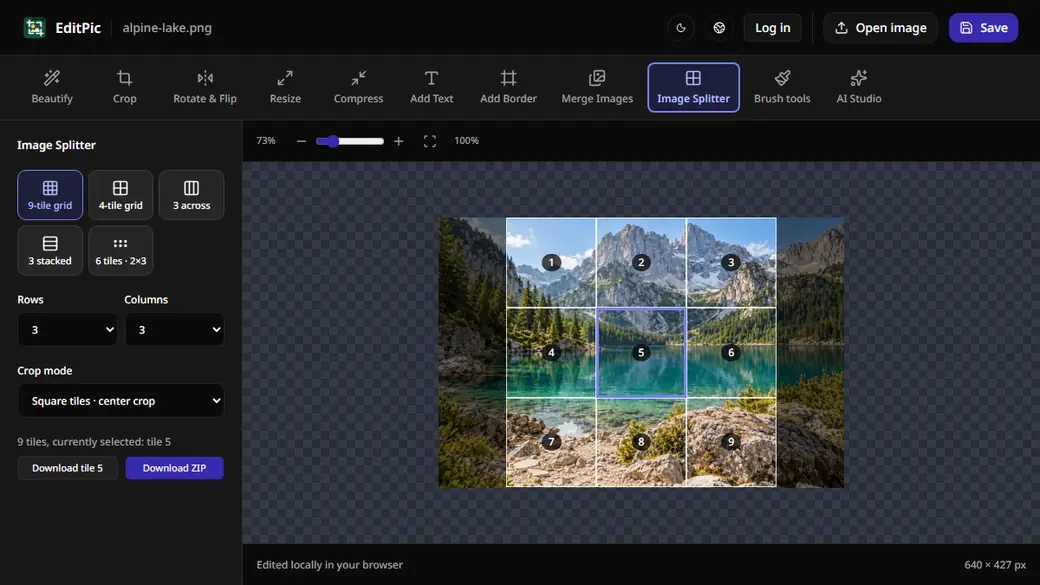
How to Split an Image Into Equal Parts Online
Split an image into a 3×3 grid, strips, or custom rows and columns in EditPic. Download one PNG tile or export every tile in a ZIP file.

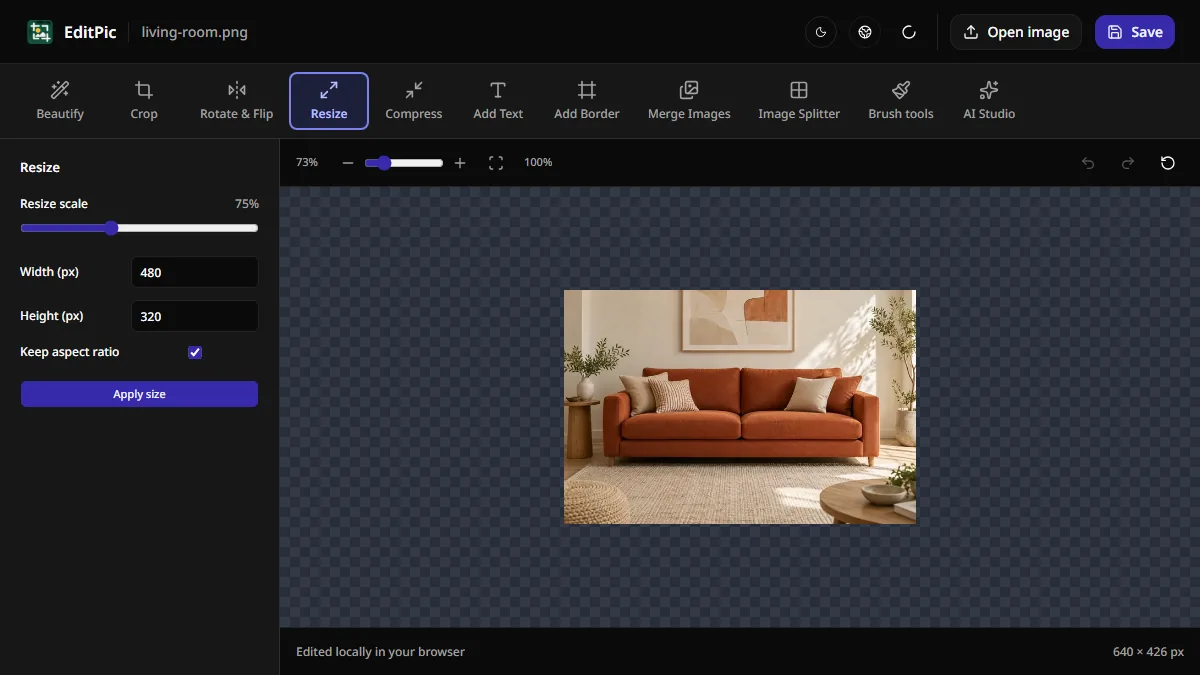
How to Resize an Image Online Without Stretching
Set a new width or height in pixels with Keep aspect ratio enabled. Learn how to resize a photo in EditPic and handle exact dimensions or file size limits.
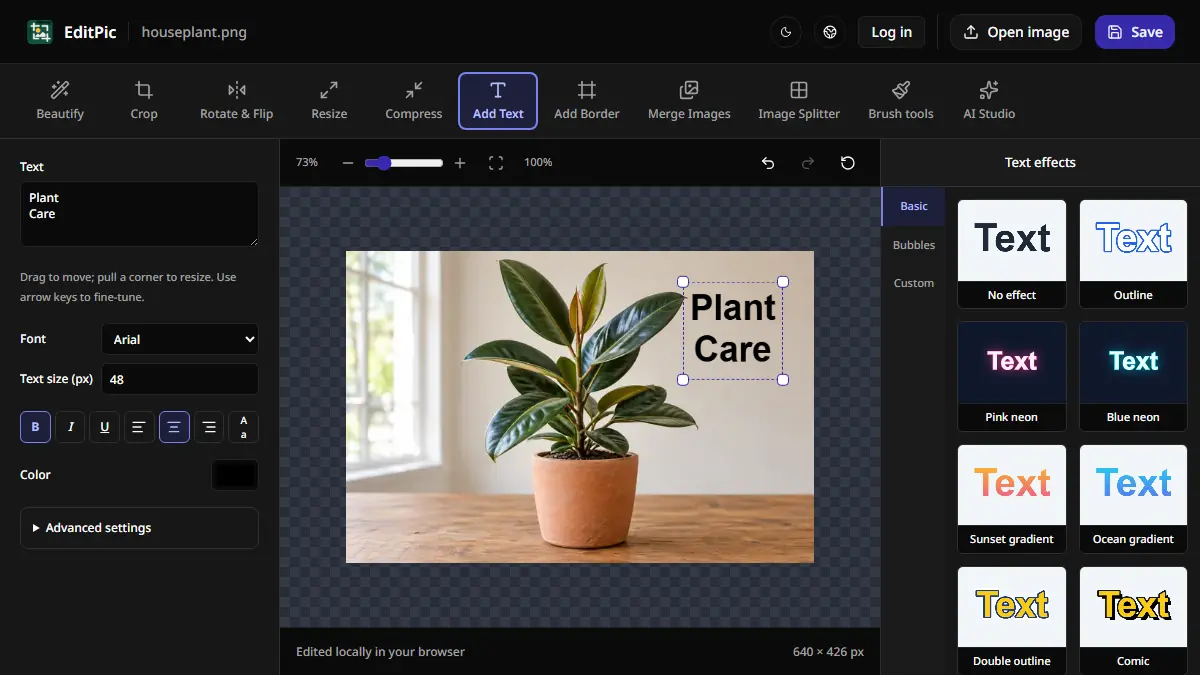
How to Add Text to a Photo Online
Add a caption, label, or title to an image in EditPic. Choose a font and color, drag the text into position, and save the finished photo.