How to Compress an Image Online Without Resizing It
Reduce a photo’s file size in EditPic while keeping its pixel dimensions. Compare JPEG, WebP, and PNG and check the result against an upload limit.
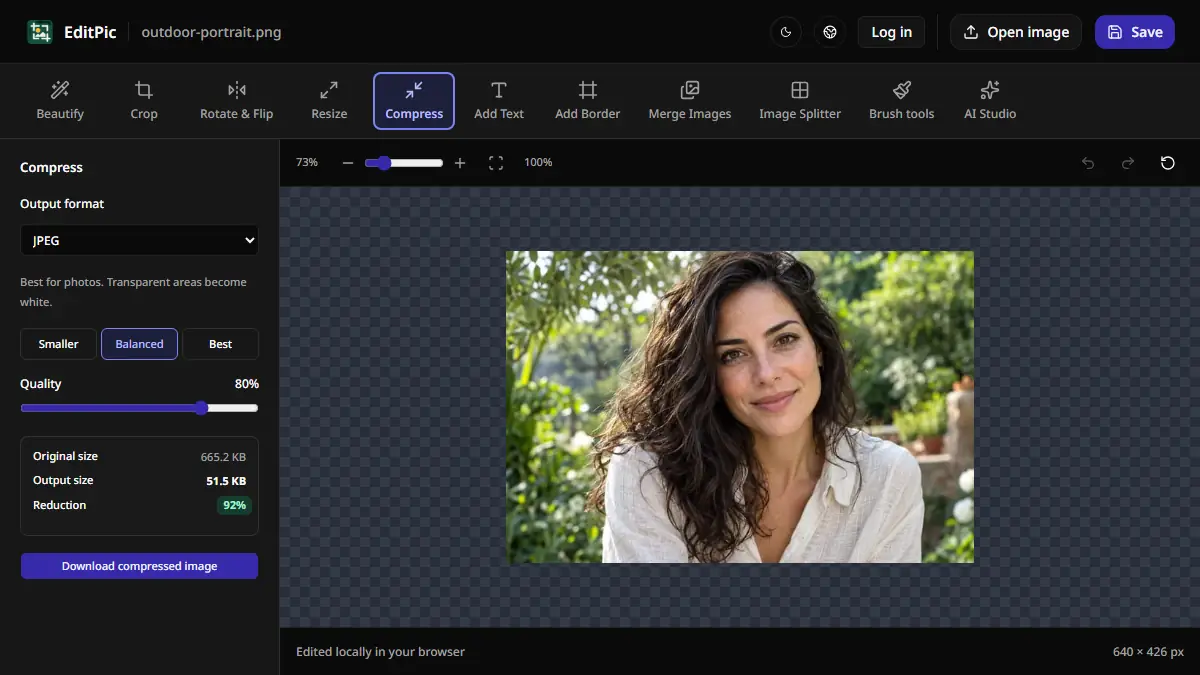
To compress an image without changing its dimensions, open Compress in EditPic, choose an output format, and check the new file size. If you use JPEG or WebP, adjust the quality until the file fits your limit and still looks clear. Select Download compressed image to save a copy. The compression runs locally in your browser.
How to compress a photo in EditPic
- Open the Compress tool and choose Open image to load your photo.
- Select Compress and choose JPEG, WebP, or PNG under Output format. Check which file formats your upload form accepts.
- For JPEG or WebP, start with Balanced. Switch to Smaller for a lower file size or Best to keep more detail. On desktop you can also use the Quality slider between presets.
- Compare Original size and Output size, and inspect the preview for any change you can see. When the file meets your limit, choose Download compressed image.
In the screenshot, we used Balanced to convert a 640 × 426 px outdoor portrait from PNG to JPEG. EditPic displayed 665.2 KB for the original and 51.5 KB for the output, a reduction of 92% for this particular photo. The downloaded JPEG still measured 640 × 426 px. Results vary with the picture, its original format, and the quality setting.
Which format should you choose?
- JPEG works well for opaque photos and for upload forms that require
.jpg. Adjust the quality, then inspect faces, hair, text, and other fine details. EditPic fills transparent areas with white when exporting to JPEG. - WebP supports transparency and gives you a quality setting in EditPic. Try it for a website image or a transparent graphic when the destination accepts WebP. WebP format details.
- PNG is useful for graphics that need lossless encoding or a transparent background. EditPic optimizes PNG without a quality slider. If an upload accepts only PNG, try the PNG output first and check its actual size. Converting a photo from JPEG to PNG can make it larger.
For example, if a form requires a JPEG below 100 KB, choose JPEG even if a WebP preview looks good at a smaller size. If you are compressing a transparent logo for a site that accepts WebP, preview it over both light and dark backgrounds before you use it.
How to get an image under 100 KB or 500 KB
Check the exact limit before you start. In Compress, try the accepted format and compare the displayed output size with the cap. Lower the quality in small steps and check the preview each time. If the number is close to the cap, leave a little room and confirm the size of the downloaded file before uploading it.
If the file is still too large and the form allows smaller dimensions, use Resize to reduce the width or height proportionally, then return to Compress. For a form that also requires exact dimensions, keep those dimensions and try another accepted format or a lower quality setting. See how to resize without stretching if you also need to meet a pixel requirement.
Treat the Quality percentage as an encoding setting. A value of 80% can give a different file size for each photo, even at the same dimensions. Use the displayed Output size to check the limit, then zoom in to inspect areas that compress poorly, such as small letters and fine textures.
What if the output stays the same size or gets larger?
An already optimized file can be difficult to shrink at the same quality. If you choose the same format and re-encoding would increase the size, EditPic keeps the smaller version it started with. A conversion to a different format may still produce a larger file, so verify the output size and quality before downloading.
Keep the original for future edits. When you need a smaller upload copy, start from the original in the EditPic compressor and make one export at a quality you have checked. This avoids re-encoding a JPEG you already compressed for a different use.
More Posts
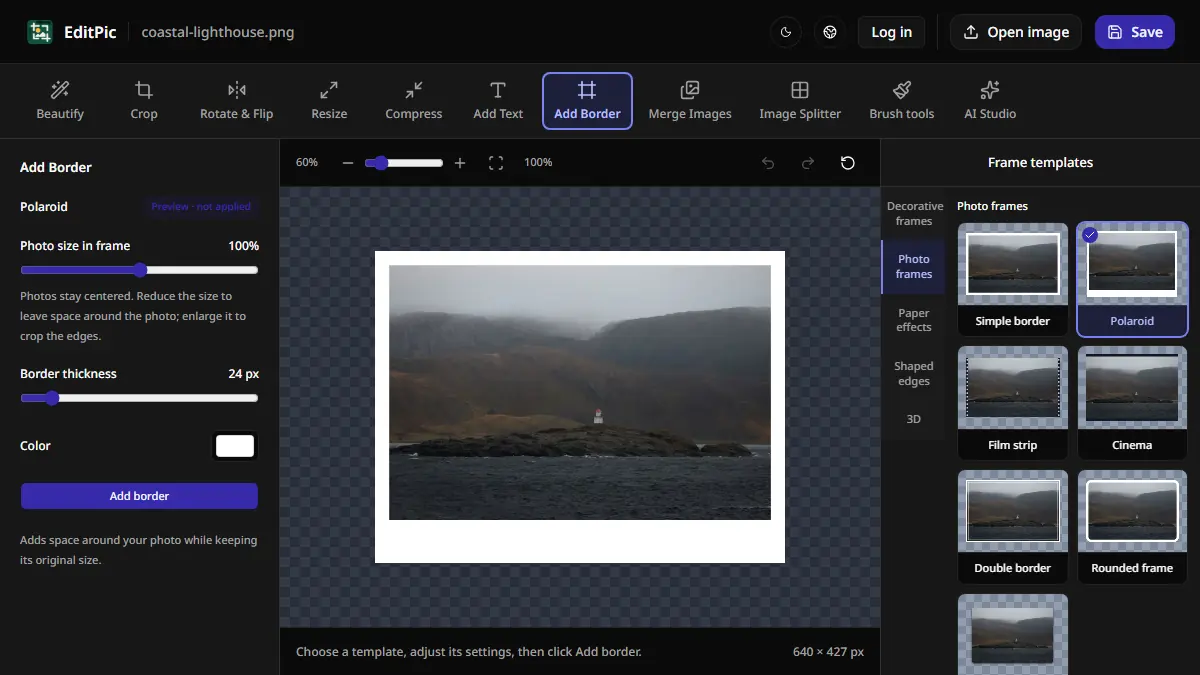
How to Add a Border to a Photo Online
Add a white border or Polaroid-style frame in EditPic. Learn which styles preserve the entire photo and how to check the new image dimensions.

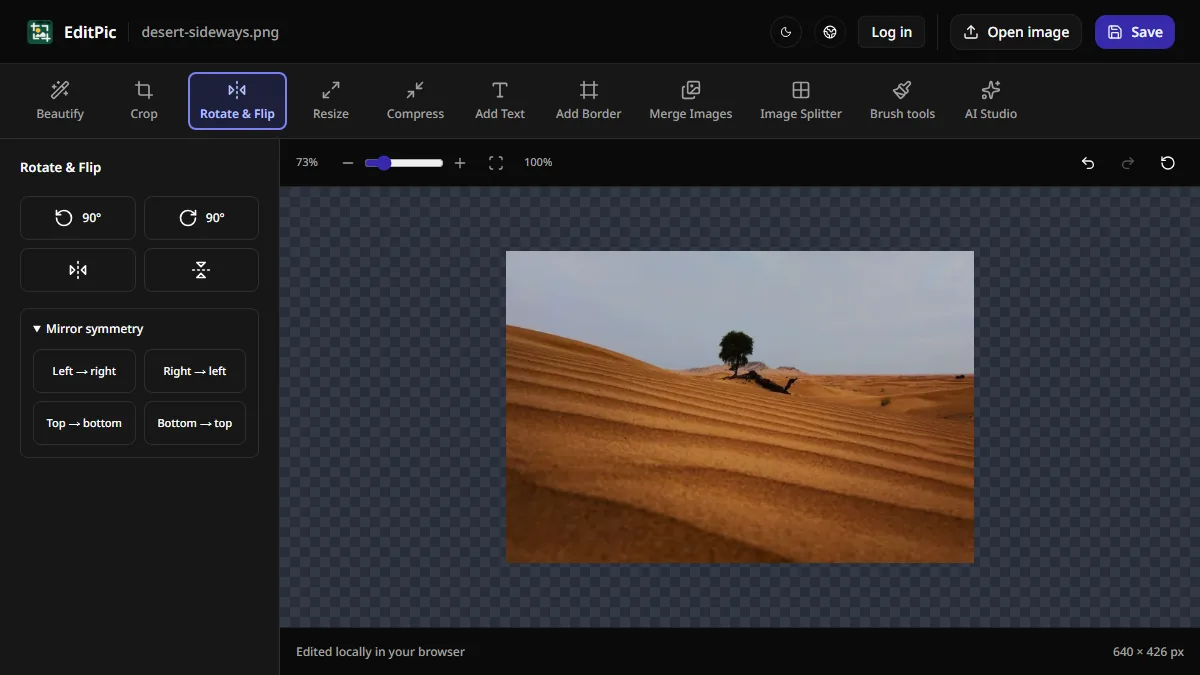
How to Rotate or Flip an Image Online
Turn a sideways photo 90 degrees, flip an image left to right, or straighten a tilted photo in EditPic and download the corrected image.
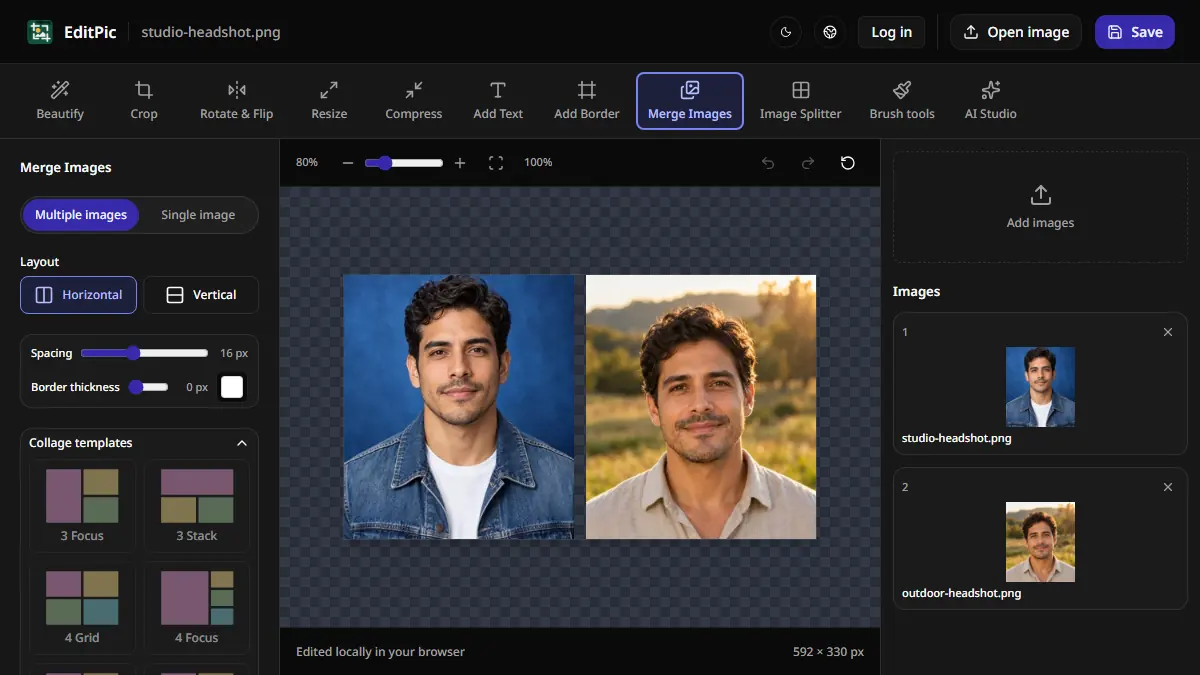
How to Combine Two Photos Side by Side Online
Put two pictures side by side in EditPic, control the gap and borders, and save a single image. See how to stack photos or make a larger collage.