How to Split an Image Into Equal Parts Online
Split an image into a 3×3 grid, strips, or custom rows and columns in EditPic. Download one PNG tile or export every tile in a ZIP file.
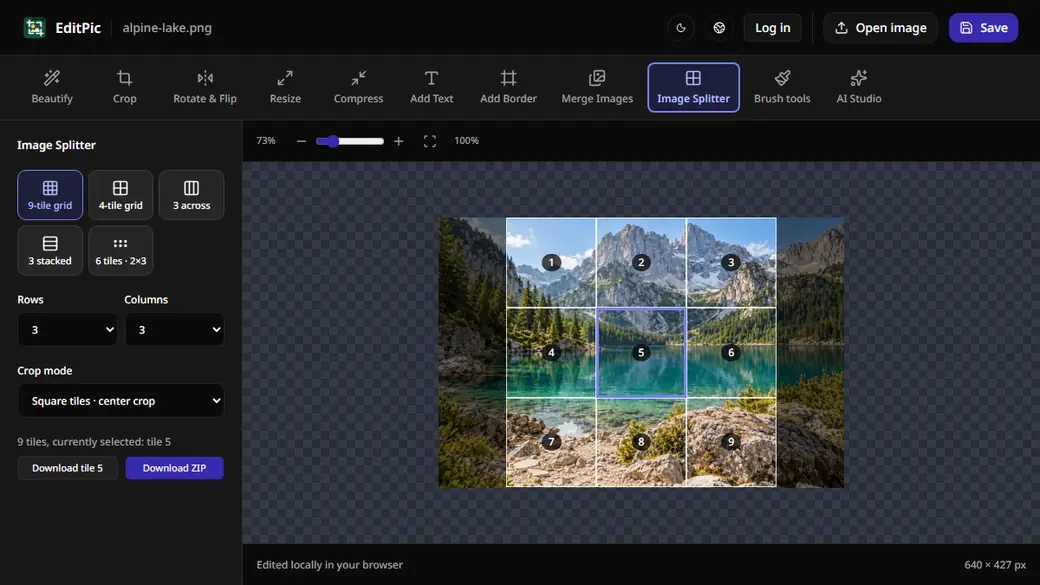
To split an image into nine pieces, open Image Splitter in EditPic and choose the 9-tile grid. Choose Square tiles for equal squares, or Keep the full image to use the entire picture. Select a tile to download one PNG, or choose Download ZIP to get all the tiles at once.
How to make a 3×3 image grid in EditPic
- Open the Image Splitter and select Open image.
- Select 9-tile grid on desktop or 9 tiles on mobile. The preview shows three rows and three columns.
- Set the crop mode. Keep the full image includes the edges of the source. Square tiles · center crop uses the largest centered area that can be divided into equal squares. On mobile, these are Full image and Square crop.
- Click or tap a tile to select it. Use the numbered download button to export that tile, or choose Download ZIP on desktop or ZIP (9) on mobile to export the full grid.
For the screenshot, we opened a 640 × 427 px alpine lake photo and chose the square 3×3 mode. EditPic used a centered 426 × 426 px area and exported nine PNGs, each 142 × 142 px. We selected the center tile to check it separately, then verified that the ZIP contained the entire grid.
How to get equal tiles without losing the edges
Use Keep the full image when every pixel from the source should be included. If the image width divides evenly by the number of columns and the height divides evenly by the number of rows, each tile will have the same dimensions. For example, a 900 × 600 px image split into three columns and two rows gives six 300 × 300 px tiles.
When a dimension does not divide evenly, EditPic distributes the remaining pixels across the grid. Some tiles may differ by a pixel so the pieces still cover the full image. If matching sizes are required, crop the image to divisible dimensions first and check the edges before splitting. For a nine-tile square design, a 900 × 900 px source gives nine 300 × 300 px tiles.
Which preset should you use for strips, grids, and circular tiles?
- 3 across creates one row of three sections. Use it to cut a wide panorama into vertical strips.
- 3 stacked creates three rows in one column. Use it when a long image needs to be shared in shorter sections.
- 4-tile grid makes a 2×2 layout, and 6 tiles makes a grid with two rows and three columns. You can also set Rows and Columns for a custom layout.
- Circular tiles uses square areas and makes the pixels outside each circle transparent. Preview the circles before exporting. Text or other details close to the corners of a tile may be clipped.
For an image you plan to reassemble, keep the original as a reference and use a layout with no circular clipping. Picture edges and straight lines make it easier to check the alignment after you place each tile. For individual icons or stickers, check each tile separately to make sure its focal point is inside the cutout.
Use the numbered preview to inspect the cut lines before you download. A grid can cut through a face, a logo, or letters. If each tile needs to stand on its own, try a different row and column count or adjust the crop before you split. When the tiles are going into separate boxes on a page, check whether the layout also adds space between them.
How to keep the tiles in order after downloading
The filenames end with the row and column numbers. For example, alpine-lake-2-2.png is the center tile of the 3×3 grid, and alpine-lake-1-3.png is at the top right. Keep those names while you organize or reassemble the images so you can find the original position of each piece.
If you need only one region, preview the grid and save that single tile. If you need a complete set, open the EditPic Image Splitter, choose a preset, and download the ZIP once you have checked the crop mode and tile sizes.
More Posts
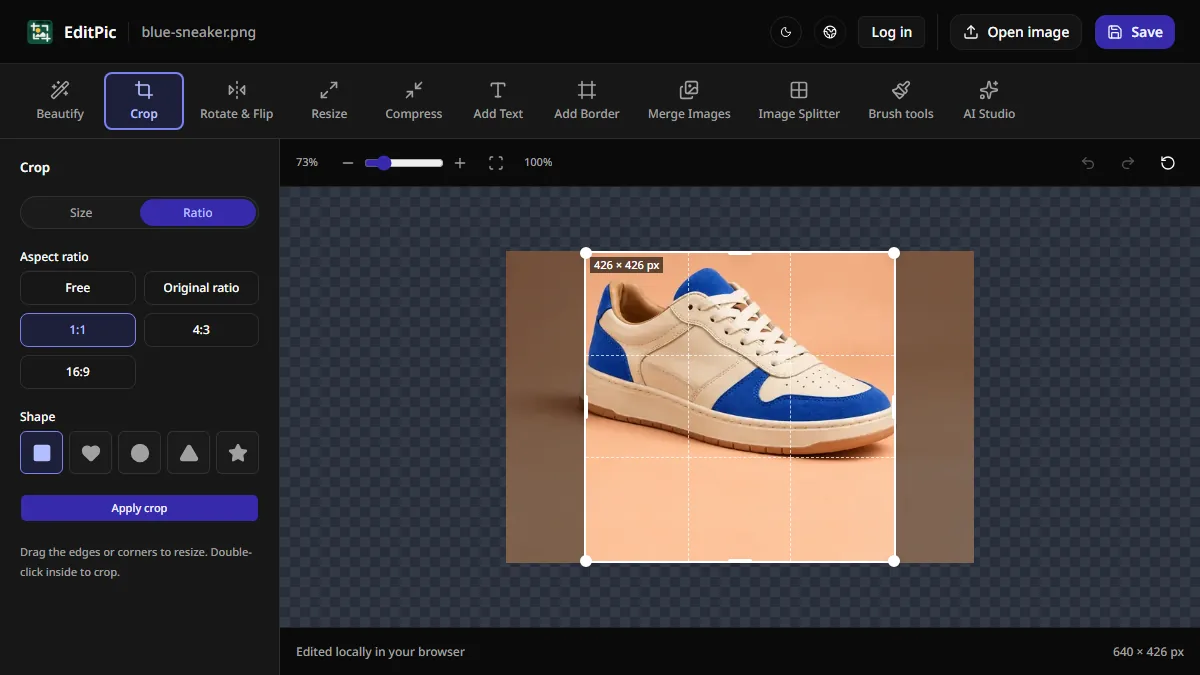
How to Crop an Image Online in EditPic
Use EditPic to crop a photo to a square, a wide 16:9 frame, or an exact pixel size. Move the crop box to keep the part you want, then save your image.

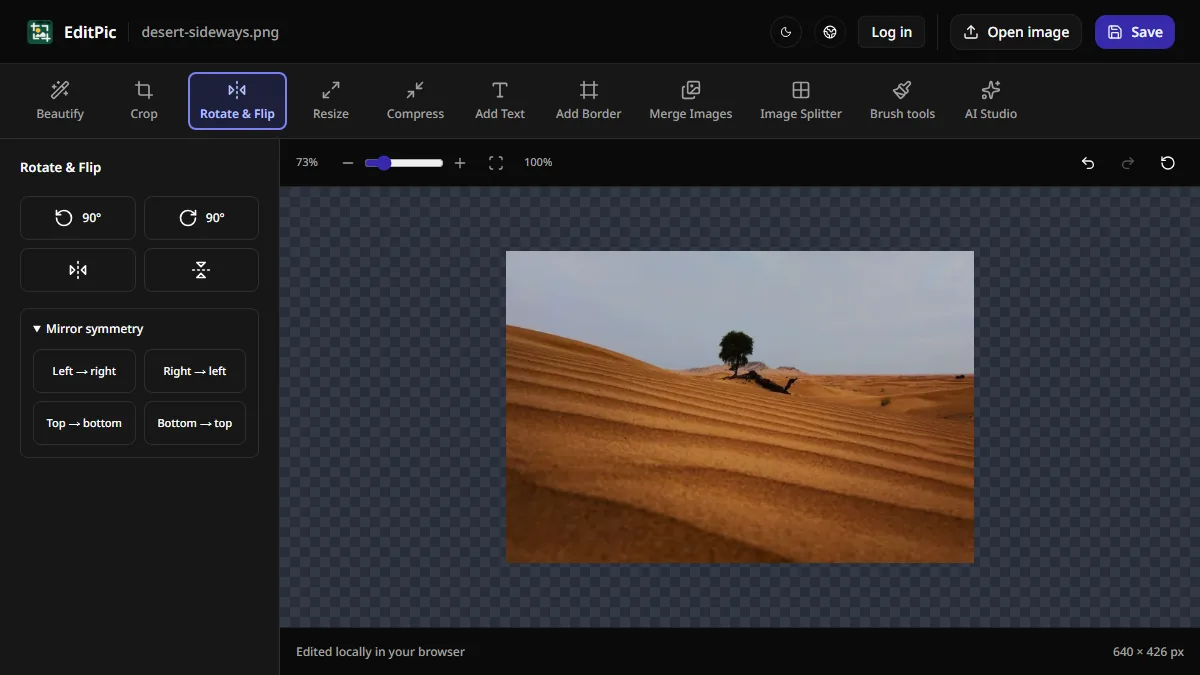
How to Rotate or Flip an Image Online
Turn a sideways photo 90 degrees, flip an image left to right, or straighten a tilted photo in EditPic and download the corrected image.
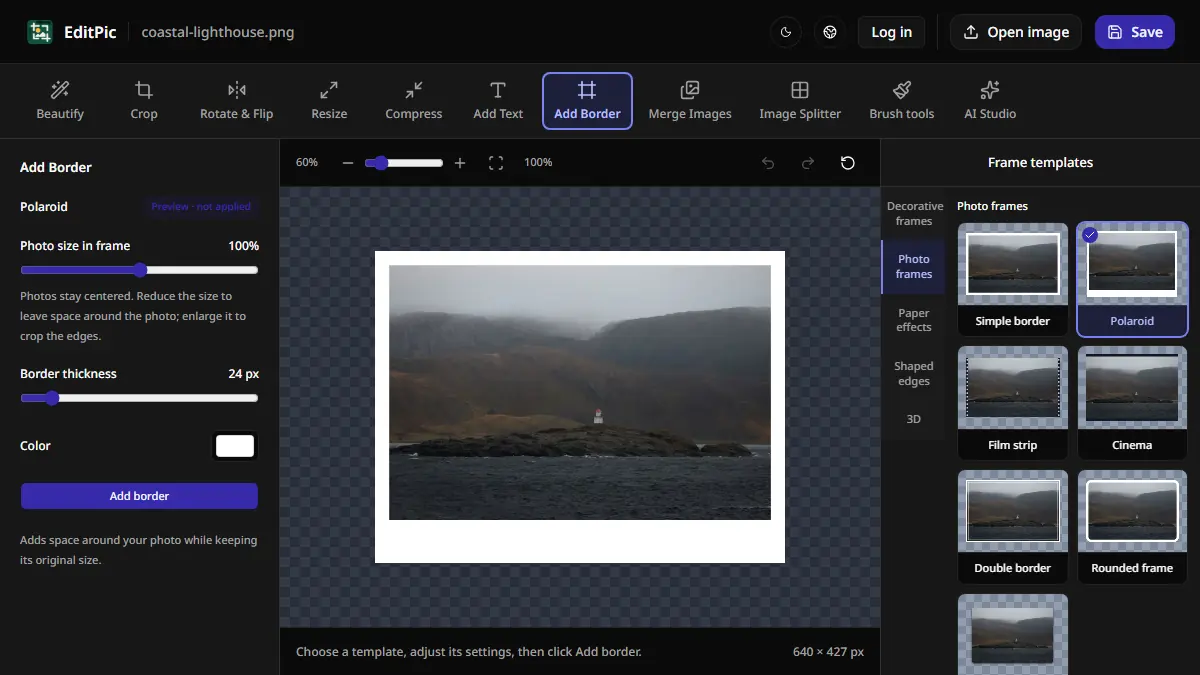
How to Add a Border to a Photo Online
Add a white border or Polaroid-style frame in EditPic. Learn which styles preserve the entire photo and how to check the new image dimensions.