How to Add Text to a Photo Online
Add a caption, label, or title to an image in EditPic. Choose a font and color, drag the text into position, and save the finished photo.
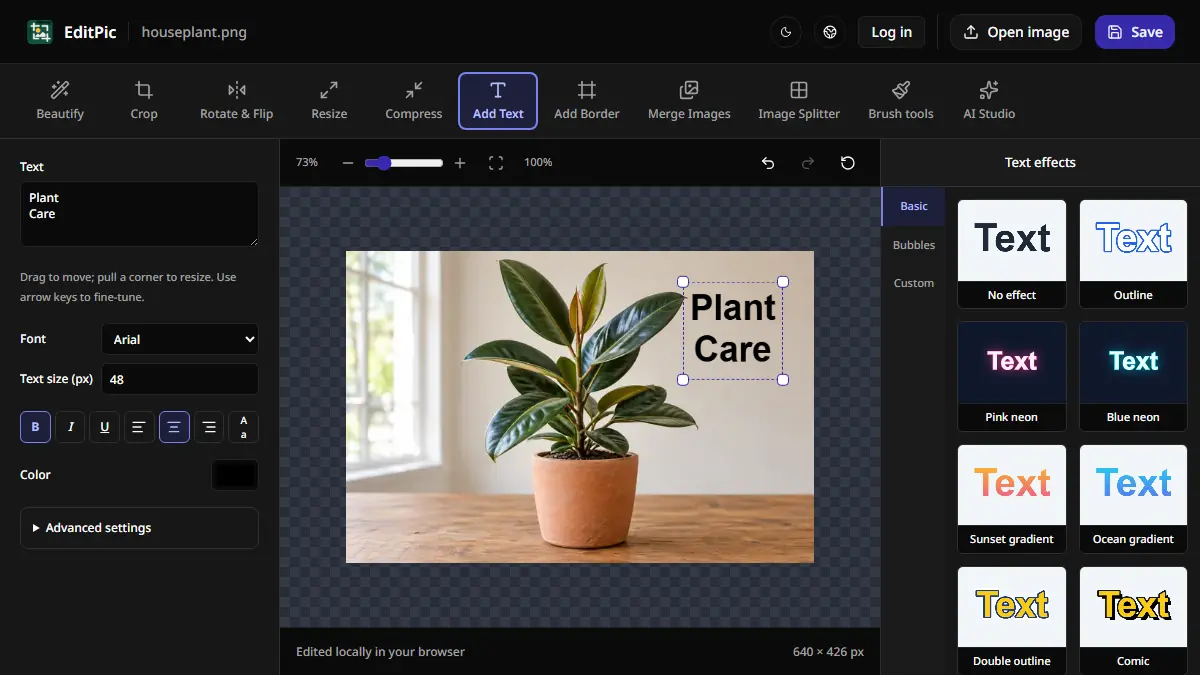
To add text to a photo, open it in EditPic and choose Add Text. Type a caption or title, adjust the font, size, and color, then drag the text into position. Select Save to download the finished image with the text on it. This works in your browser without signing in.
How to put text on a picture in EditPic
- Open the Add Text tool and choose Open image to load your photo.
- In Add Text, type into the text field on desktop. On mobile, tap New text, type your caption, and tap Done. You can break a longer caption into two lines in the text field.
- Pick a font, size, and color. Use the alignment controls if you have multiple lines. Watch the preview as you change the settings.
- Drag the text box to a part of the photo with enough room. You can adjust its size with the size control or by pulling a corner of the text box.
- Select Save. Open the downloaded copy and check the wording and placement at the size where people will see it.
For the screenshot, we put the words Plant Care on two lines over the light wall beside a houseplant. Setting the letters to black made them easy to read against the wall. Moving the box toward the right kept the leaves and the plant pot visible. We checked the downloaded image at 640 × 426 px with the text included.
How to make a caption readable on a busy photo
Try moving the caption onto a quieter part of the photo first. On a pale wall, dark text usually has enough contrast. On a dark background, try light text. A background can change from dark to light across a single word, so check each line where it actually sits.
If there is no clear area, open Advanced settings and try a thin Stroke to separate the letters from the image. A Text background gives you a more even surface behind the words. Start with enough opacity for the letters to stand out, then lower it only if the text stays readable. A soft shadow can help with mild variation, while a solid or translucent background is often easier to read over very busy detail.
For a thumbnail or product image, preview the result at its final size. The caption may read well on a large canvas and become too small in a product grid. A short line with a larger font usually works better there. Leave room near the edges in case the site shows a cropped preview.
For a quick check, read the caption at arm's length on a phone. If a number or letter takes effort to make out, try a simpler font, fewer words, or a quieter placement.
How to add a title and a second label
Use separate text boxes when a title and label need different positions or sizes. Add the first box and click or tap an empty area of the photo to finish editing it. On desktop, type the next label after the prior box is committed and the text field is cleared. On mobile, select New text again. You can select a text box already on the image to edit its wording or move it while you are still working in the editor.
For example, use a large title on a quiet part of a garden photo and a smaller plant name near the pot. For a reference photo, put the room number or measurement next to the relevant detail, leaving enough space to read the text without covering the feature being described.
Can you edit the caption after saving?
The downloaded image contains the text as part of its pixels. If you reopen that exported file, its lettering is already part of the image. Keep the original photo and a copy of the wording if you plan to create more versions after leaving the editor.
If the picture needs to fit a banner or thumbnail, crop it to the frame before adding a title. Once the caption is in place, use the EditPic text tool preview to check that all of the letters are inside the image before you save.
More Posts
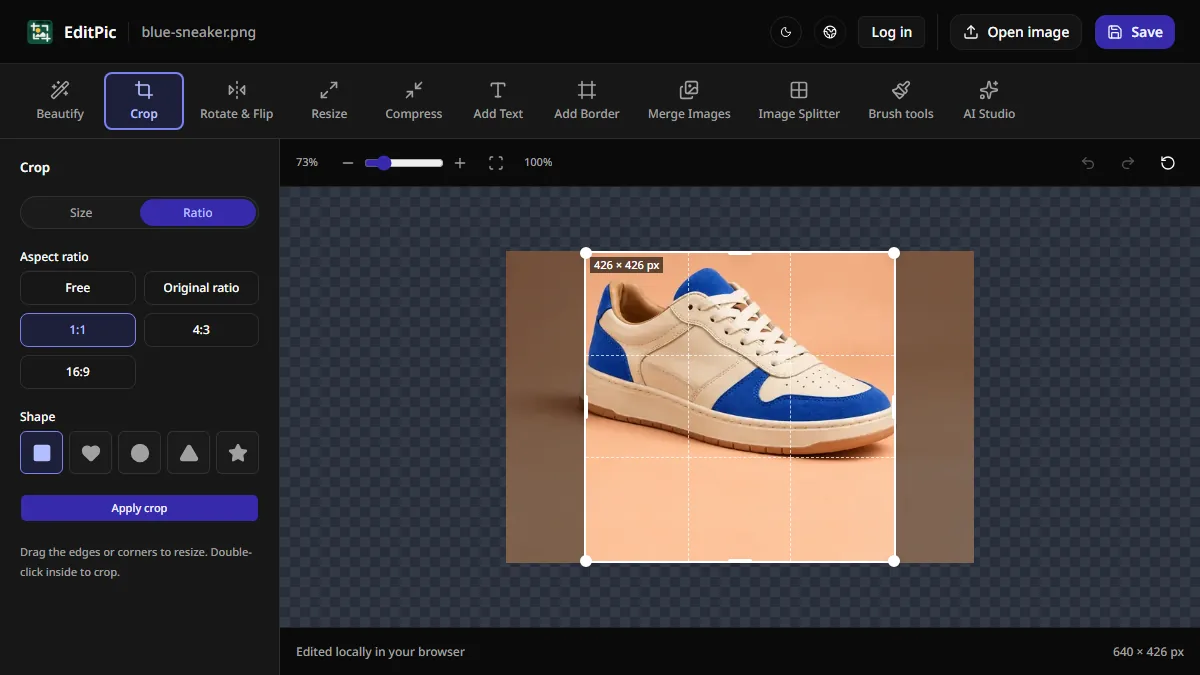
How to Crop an Image Online in EditPic
Use EditPic to crop a photo to a square, a wide 16:9 frame, or an exact pixel size. Move the crop box to keep the part you want, then save your image.

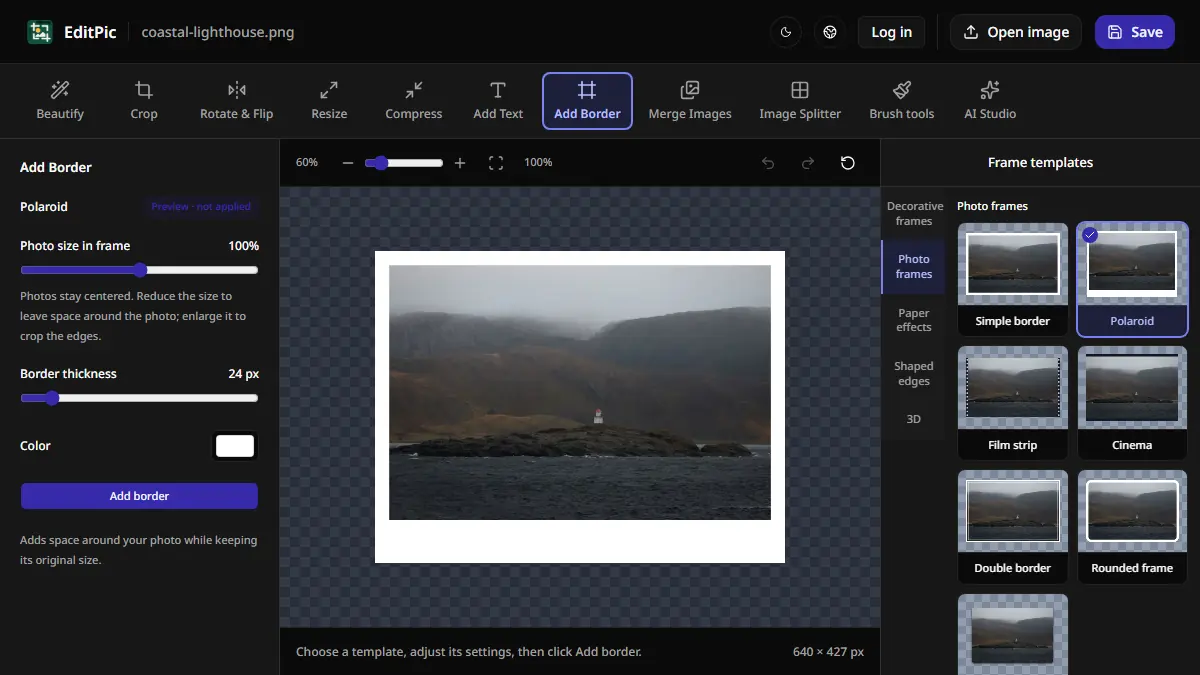
How to Add a Border to a Photo Online
Add a white border or Polaroid-style frame in EditPic. Learn which styles preserve the entire photo and how to check the new image dimensions.
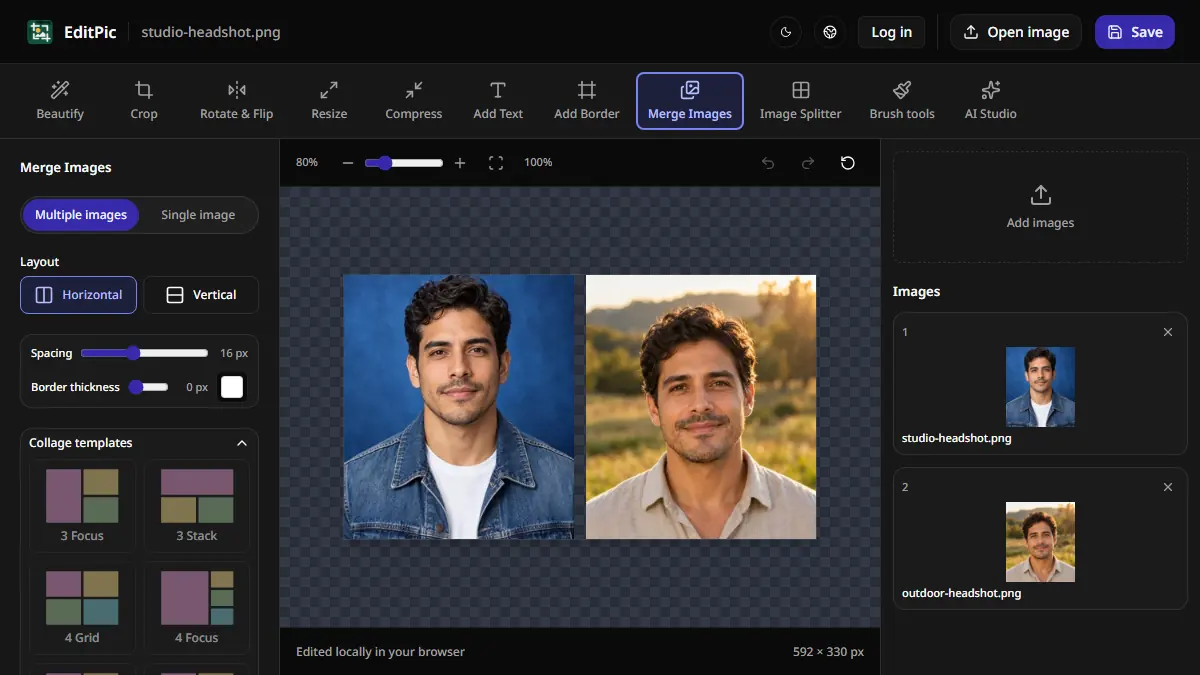
How to Combine Two Photos Side by Side Online
Put two pictures side by side in EditPic, control the gap and borders, and save a single image. See how to stack photos or make a larger collage.