How to Crop an Image Online in EditPic
Use EditPic to crop a photo to a square, a wide 16:9 frame, or an exact pixel size. Move the crop box to keep the part you want, then save your image.
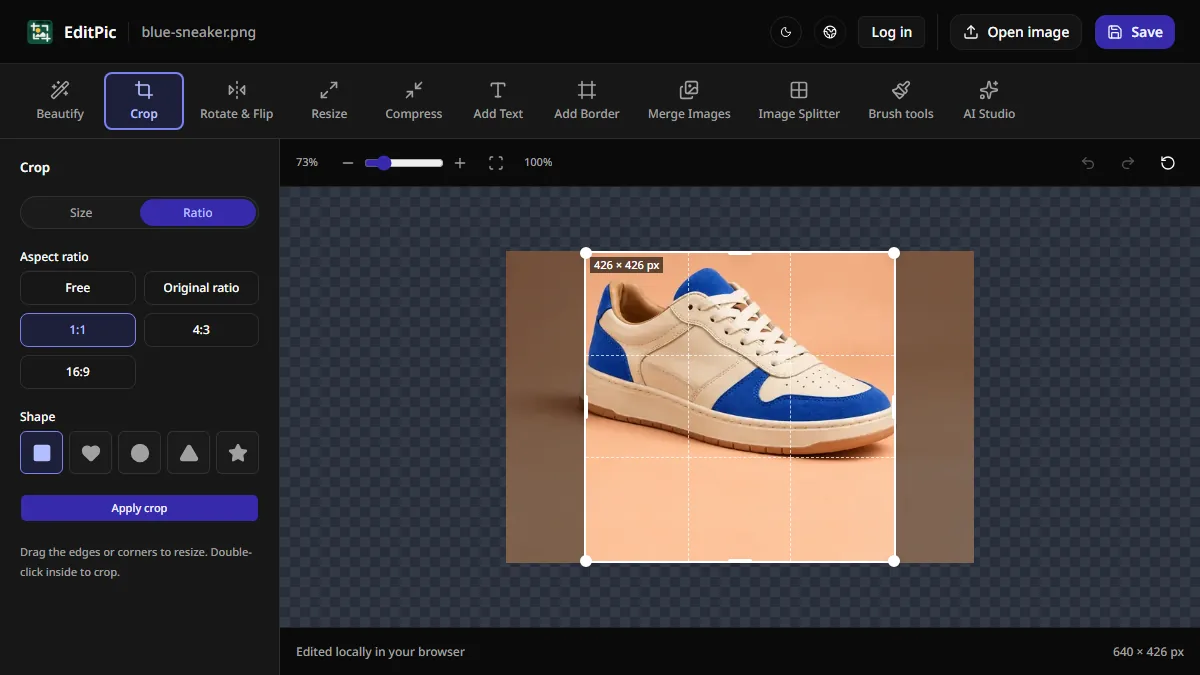
To crop an image online, open it in EditPic and select Crop. Pick a ratio such as 1:1 for a square or 16:9 for a wide image, then drag the selection over the part you want to keep. Click Apply crop and Save to download the result. Cropping runs in your browser and works without an account.
How to crop a photo in EditPic
- Open the Crop tool and choose Open image to load a photo.
- Select Crop. Choose the Ratio tab on desktop or Presets on mobile. Pick 1:1, 4:3, 16:9, Original ratio, or Free. Use Free when you only need to trim an edge.
- Drag inside the crop box to move it. Pull a corner or edge to adjust the selection. The dimmed area shows what will be cut away.
- Click Apply crop to review the result. Use Undo if you need to make another selection, then click Save when the framing looks right.
The screenshot shows a square selection on a 640 × 426 px product photo. Applying that selection produced a 426 × 426 px download. The square kept the full height and removed space from the sides. You can move the selection sideways if the subject sits off-center.
Which crop ratio should you use?
- 1:1 (square) works for square thumbnails and profile images. If the destination displays the photo in a circle, leave extra space around the subject. A square file's corners can disappear in the circular preview.
- 4:3 produces a landscape frame with more vertical room than 16:9. Try it when the top and bottom of the photo carry details you want to keep.
- 16:9 (widescreen) works for wide banners and video thumbnails. Look for things a wide crop can cut off, such as a person's head, a product label, or text near the bottom of a screenshot.
- Original ratio keeps the same proportions as your source photo. Use it to tighten the composition while keeping the image compatible with the same layout.
Start with the ratio required by the page or form you are uploading to. If there is no required ratio, start with the widest frame that removes the distraction and gives your subject room at the edges. For a screenshot, leave enough space to keep the relevant labels readable.
For a series of product photos, use the same ratio for each image and leave a similar amount of space around each product. Check the crops together at thumbnail size. An object that looks centered on its own can still sit much higher or lower than the others in a row.
How to crop to an exact pixel size
An aspect ratio describes a shape. Both 600 × 600 px and 1080 × 1080 px are square. If the destination asks for a specific width and height, use Size on desktop or Custom size on mobile and enter the two pixel values. Move the box into position and apply the crop. The selection has to fit inside the original image.
You can also use those fields for ratios without a preset. For example, a 1000 × 1250 px selection gives you a 4:5 portrait crop if the source has room for both dimensions. Keep the rectangle shape for a standard photo upload.
If you want to preserve a wider composition, make a larger crop with the same ratio and then resize it. For example, to make a 1200 × 675 px banner from a large portrait, choose 16:9, frame the most important part of the portrait, and apply the crop. Then choose Resize, enter a width of 1200 px, and check that the height reads 675 px before saving. This gives you control over which part of the portrait fills the banner. See the guide to resizing an image by pixels.
Can you make a photo square and keep the entire image?
A full-bleed square crop of a rectangular photo will cut something off. If the entire photo needs to remain visible, place it on a square canvas with space around it. For a group photo, that may be a better fit than cropping out people at the sides. If a square crop works for your image, open the EditPic Crop tool and adjust the selection until all the important details sit comfortably inside it.
More Posts
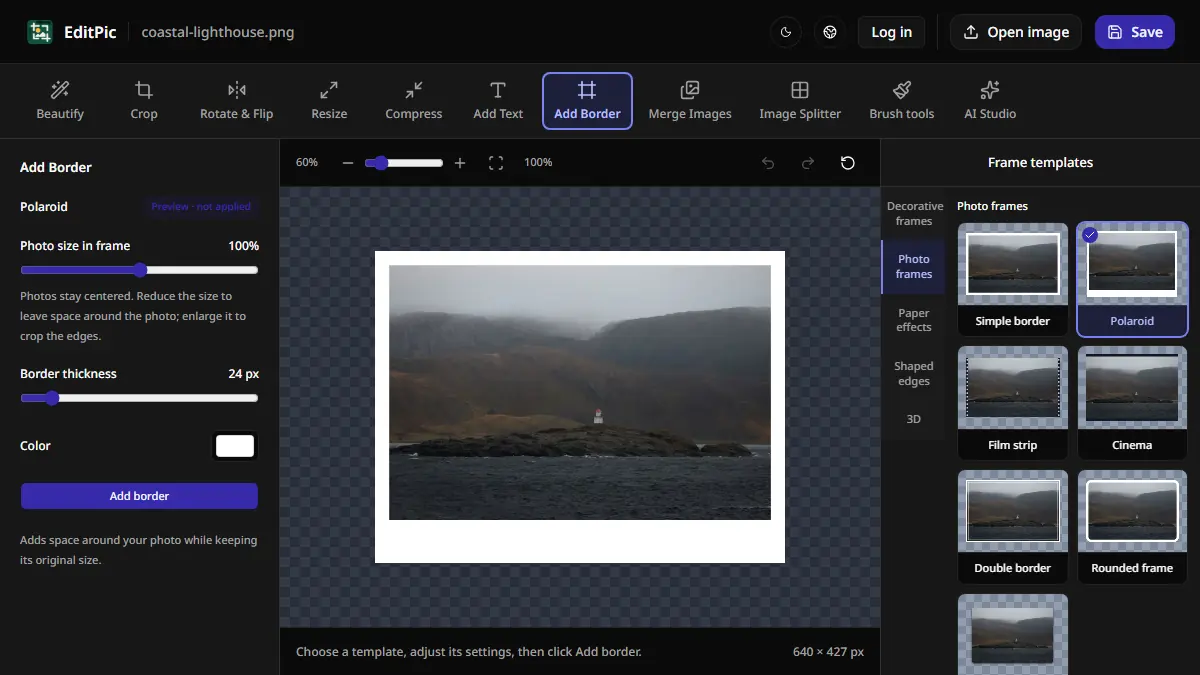
How to Add a Border to a Photo Online
Add a white border or Polaroid-style frame in EditPic. Learn which styles preserve the entire photo and how to check the new image dimensions.

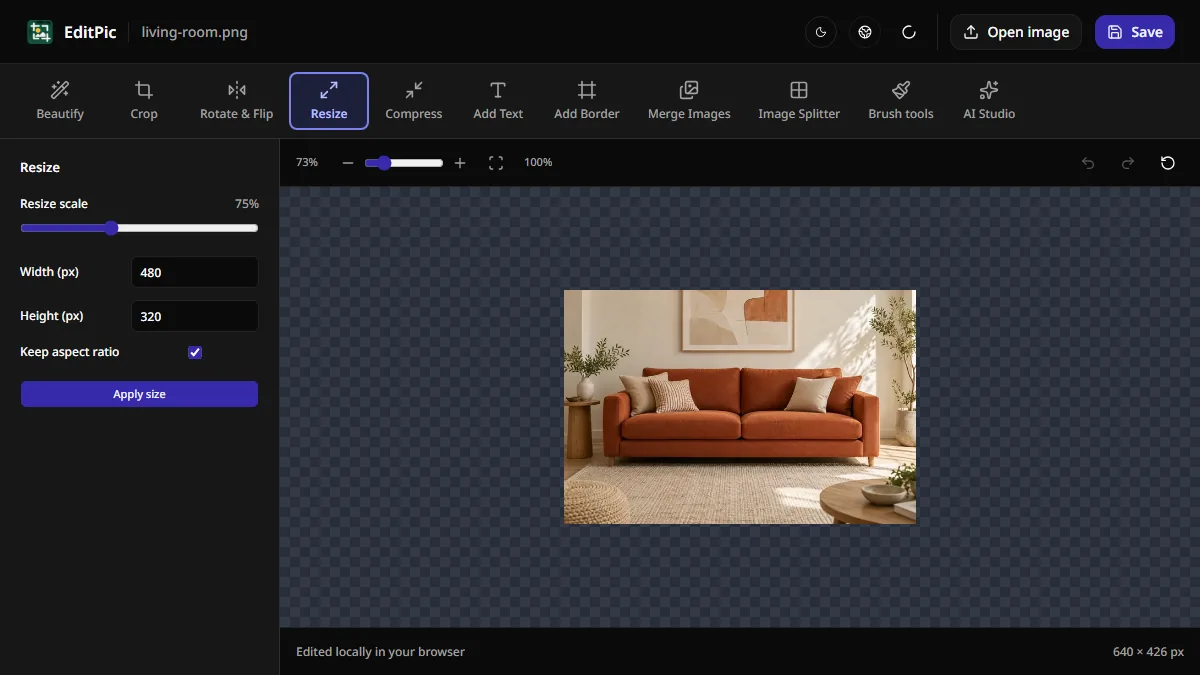
How to Resize an Image Online Without Stretching
Set a new width or height in pixels with Keep aspect ratio enabled. Learn how to resize a photo in EditPic and handle exact dimensions or file size limits.
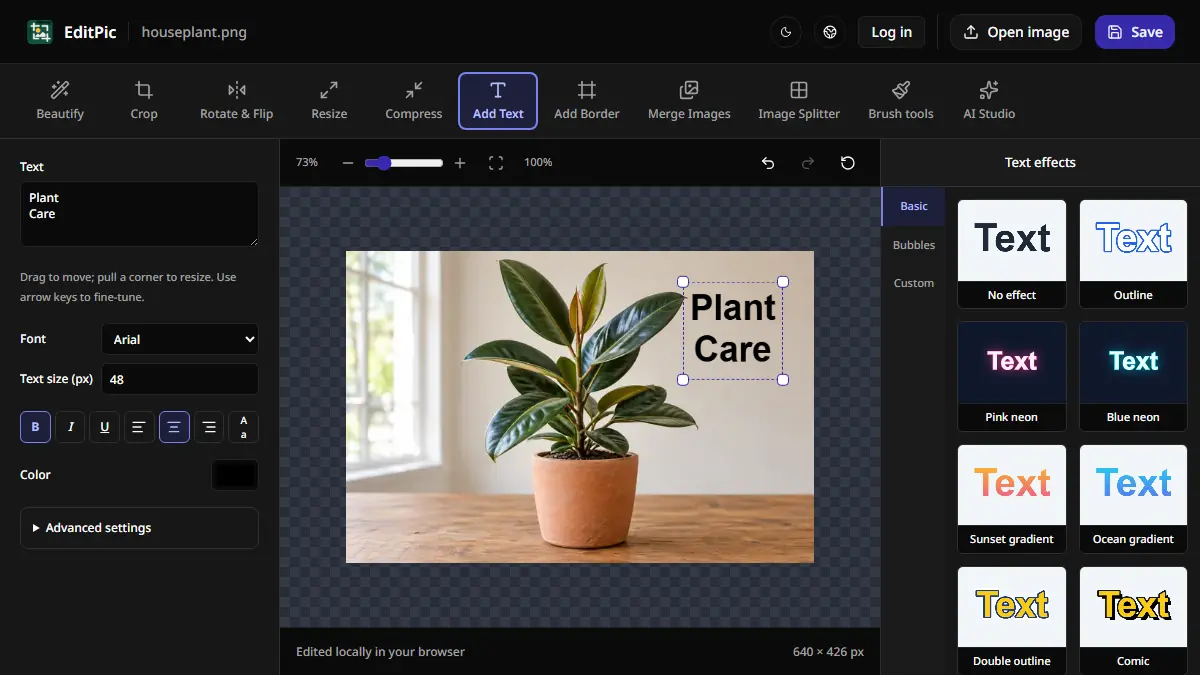
How to Add Text to a Photo Online
Add a caption, label, or title to an image in EditPic. Choose a font and color, drag the text into position, and save the finished photo.