How to Rotate or Flip an Image Online
Turn a sideways photo 90 degrees, flip an image left to right, or straighten a tilted photo in EditPic and download the corrected image.
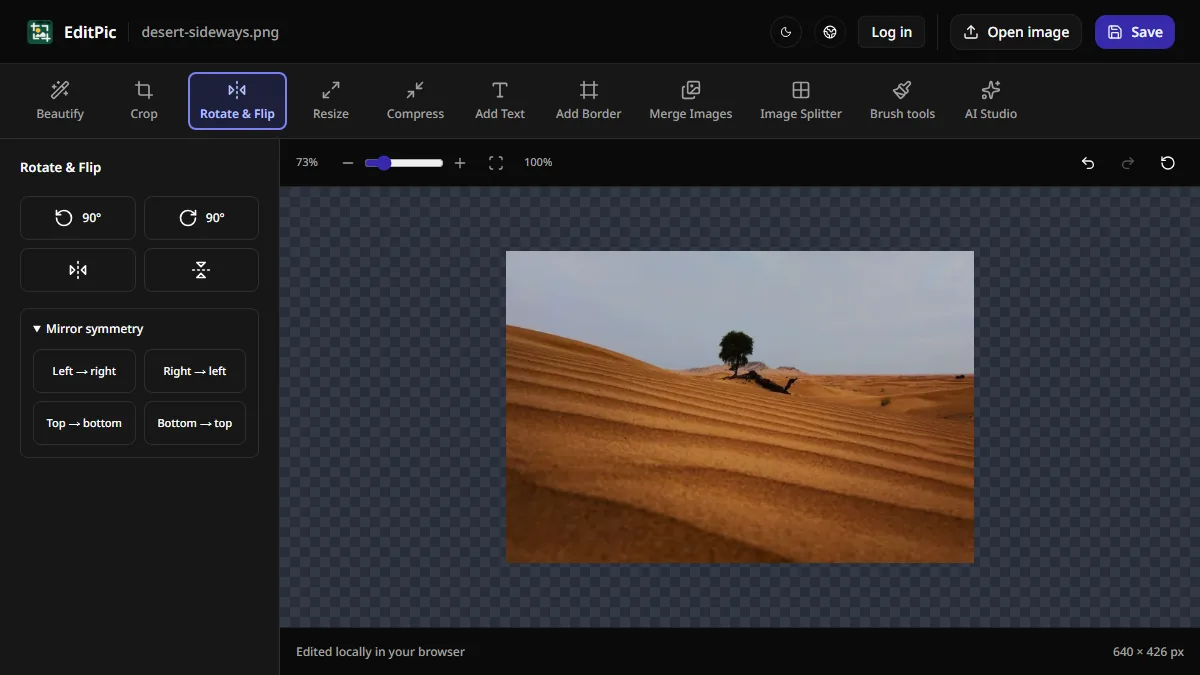
To fix a sideways photo, open it in EditPic, choose Rotate & Flip, and select one of the 90° rotate buttons. To reverse a mirrored photo, use Flip horizontally. Check the orientation on the canvas and select Save to download the corrected image. Both edits run in your browser without an account.
How to rotate a picture 90 or 180 degrees
- Open the Rotate & Flip tool and choose Open image to load your photo.
- Use Rotate left for a counterclockwise quarter turn or Rotate right for a clockwise quarter turn. On a phone, these appear as −90° and +90°.
- For an upside-down photo, use the same rotate button twice to turn the photo 180°. You can use Undo to step back and try the other direction.
- Inspect the photo on the canvas, then choose Save. Open the downloaded copy to confirm it looks upright wherever you intend to use it.
For the screenshot, we opened a sideways version of a desert photo that measured 426 × 640 px. After a clockwise quarter turn, the sky was at the top and the saved image measured 640 × 426 px. A quarter turn swaps the width and height, so check the new dimensions if the photo is intended for a fixed layout or an upload form.
A half turn keeps the original width and height. On desktop, hover over the two 90° buttons to see which one turns left and which one turns right.
When to flip a photo horizontally or vertically
Flip horizontally exchanges the left and right sides of the image. It can fix a mirrored camera preview or change the direction a subject faces in a layout. Look for writing, numbers, or a logo after you flip. Those details reverse too, so they are a quick way to tell whether you chose the intended orientation.
Flip vertically exchanges the top and bottom. Use it when you want a reflection across a horizontal axis. For an upside-down picture with readable lettering, a 180° rotation generally gives you the orientation you expect while keeping the lettering readable.
The Mirror symmetry controls use one half of the photo as a reflection in the other half. For example, Left → right copies a reflected version of the left half onto the right. Try it for a symmetrical composition, such as a pattern or a reflection. For a selfie that is already mirrored, choose the horizontal flip so you can reverse the whole frame and keep the whole scene.
How to straighten a slightly tilted photo
On mobile, open Rotate & Flip and drag the Fine rotation slider a few degrees at a time. The editor previews the tilt while you drag and applies the angle when you release the slider. Choose a horizon, the edge of a door frame, or another line you know should be level or vertical. Align that line visually, then release the slider and inspect the corners.
A small rotation can leave transparent corners around the tilted photo. If the new image needs to fill a rectangle edge to edge, apply the rotation first, then crop the photo inside its straightened edges. Leave some space around the subject in the original so you have room to remove those corners without losing an important detail.
If the image is meant to fit an exact pixel size, correct the orientation first. Crop to the required shape and then resize the image. Check both dimensions in the finished download, especially if you started with a sideways portrait.
What should you check before sharing the download?
Use a detail you recognize. For a document or sign, check that the text runs in the right direction. For a landscape, check that the sky is at the top and look for a horizon that feels level. For a design with a fixed frame, check that the final width, height, and edge spacing still fit.
Open the EditPic Rotate & Flip tool when you need a quick orientation fix. Start with a quarter turn for a sideways photo or a horizontal flip for a mirrored one, then save a copy you can check outside the editor.
More Posts
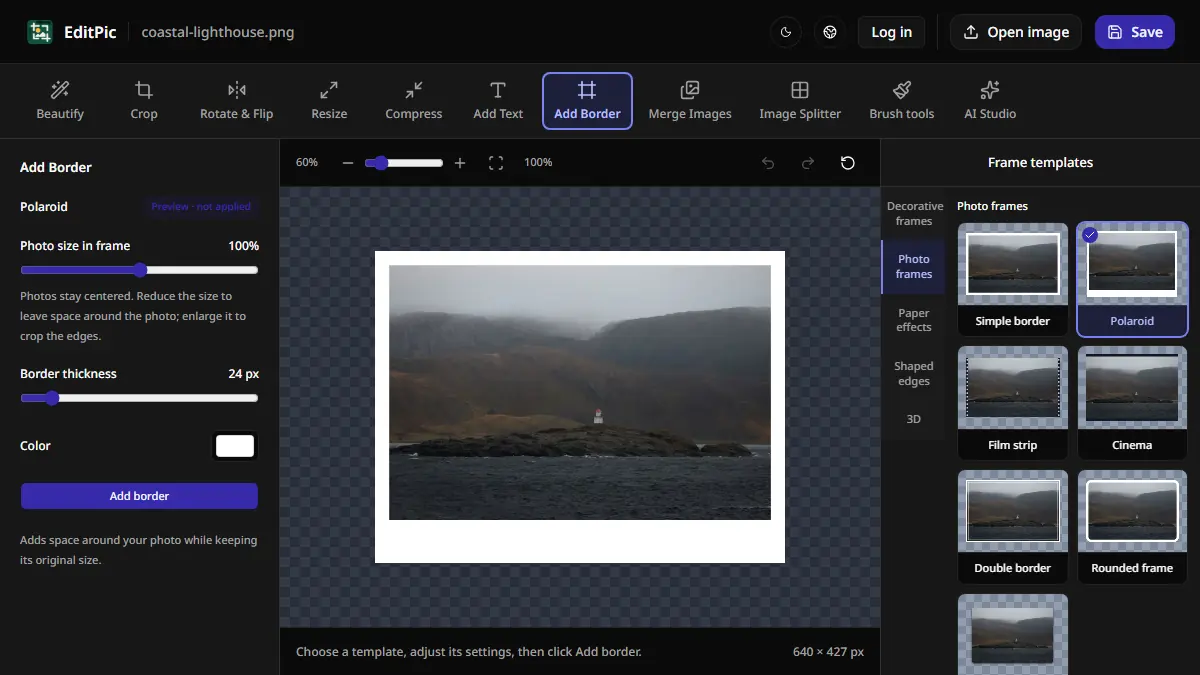
How to Add a Border to a Photo Online
Add a white border or Polaroid-style frame in EditPic. Learn which styles preserve the entire photo and how to check the new image dimensions.

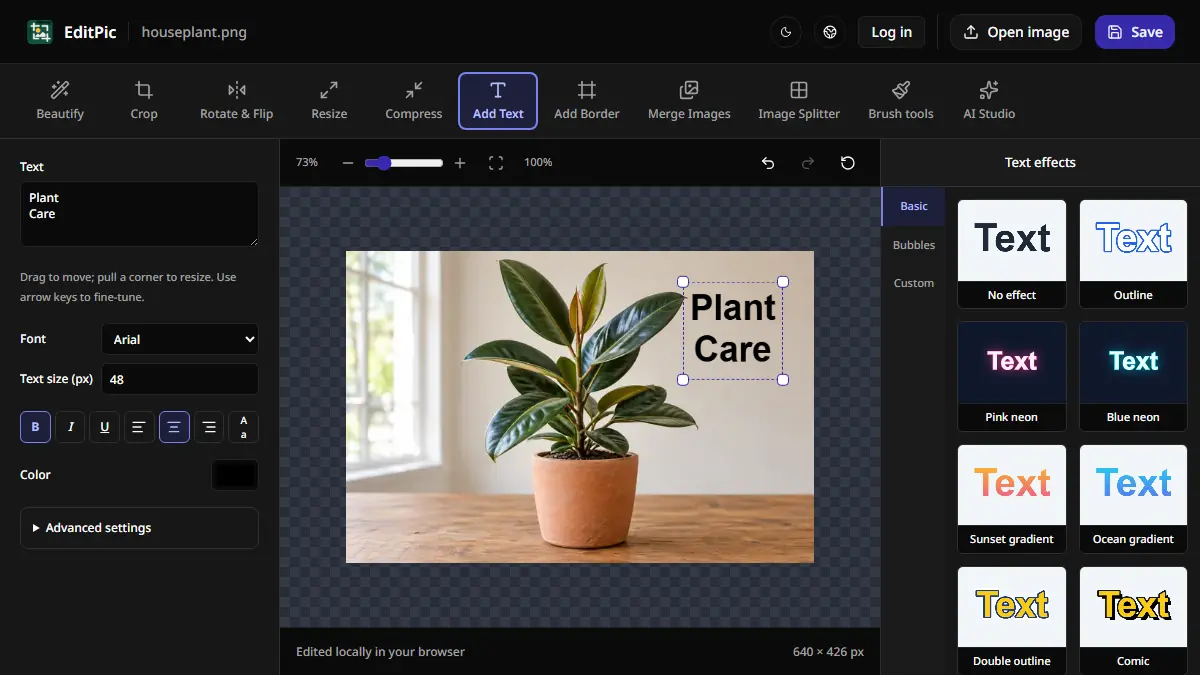
How to Add Text to a Photo Online
Add a caption, label, or title to an image in EditPic. Choose a font and color, drag the text into position, and save the finished photo.
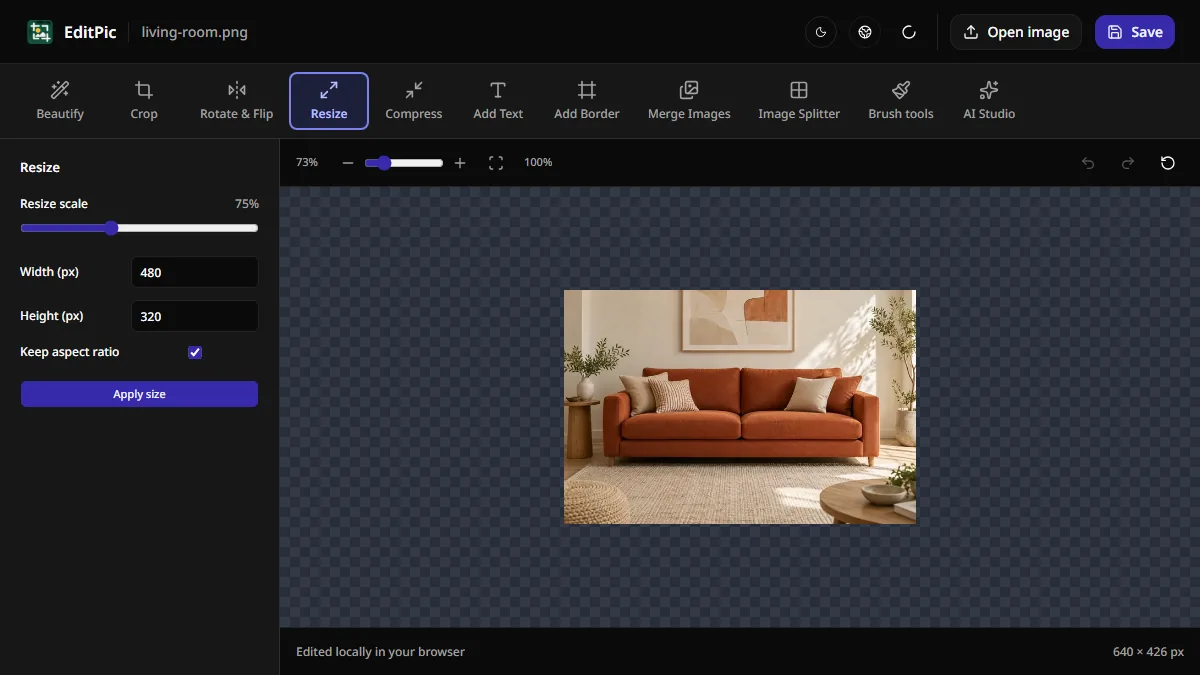
How to Resize an Image Online Without Stretching
Set a new width or height in pixels with Keep aspect ratio enabled. Learn how to resize a photo in EditPic and handle exact dimensions or file size limits.